What LAM does
LAM listens to each channel coming from your mixing board and continuously balances them for the livestream — keeping the lead vocal audible over the band, holding a steady loudness so the stream doesn't blast during the loud stretches and vanish during the quiet ones.
It does not change what the room hears. Your sound tech mixes for the room as always; LAM mixes for the people watching at home.
or interface every channel, separately
Program and Monitor carry the same audio. Monitor is simply a second copy, so you can hear exactly what the stream is getting — until you press Solo, which changes only the Monitor.
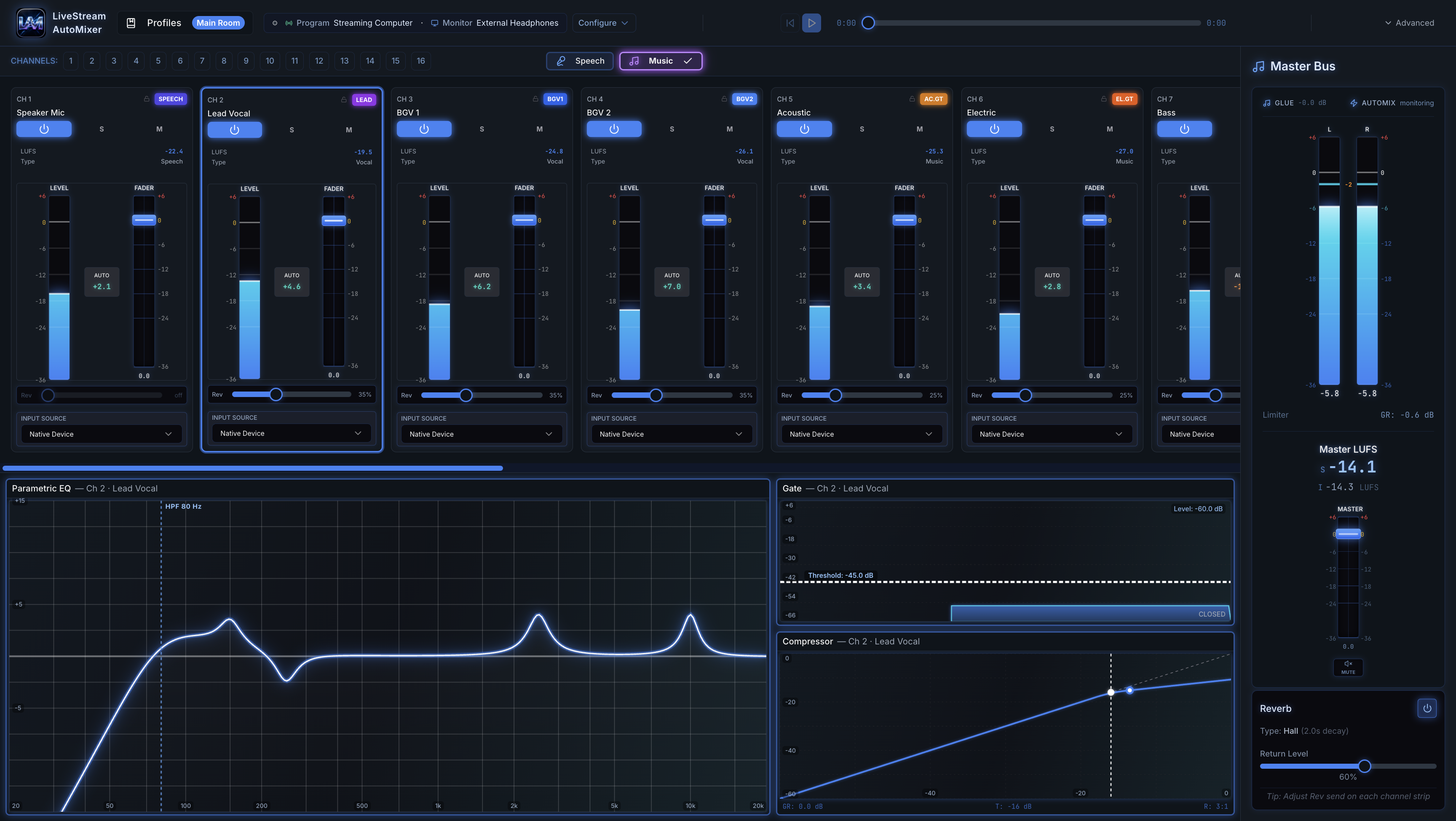
Setting up
1. Choose your input
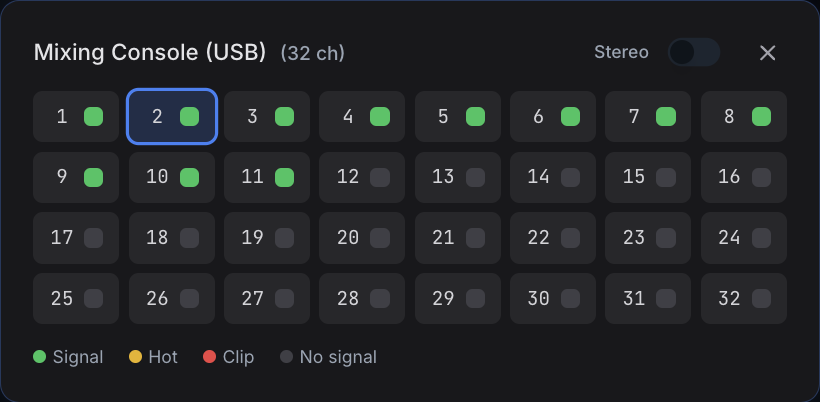
Pick the device your board sends audio to — a digital mixing console over USB, a Dante interface, or any audio interface with multiple channels. LAM needs each instrument and microphone on its own channel; a single stereo mix won't work, because there's nothing to balance.
2. Assign each channel
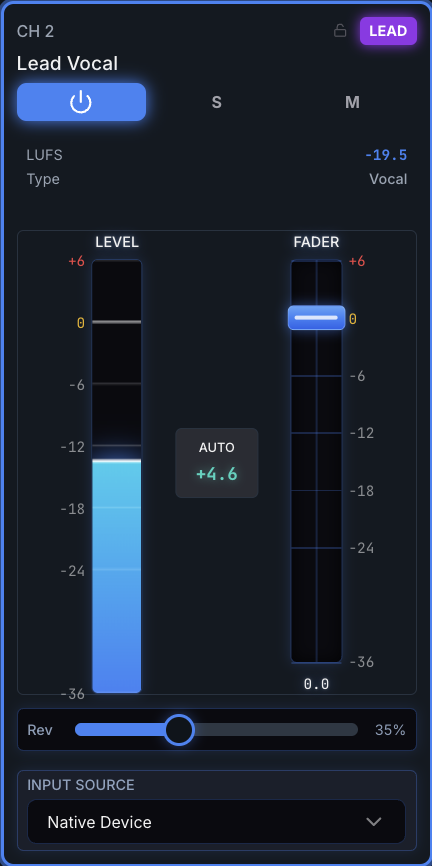
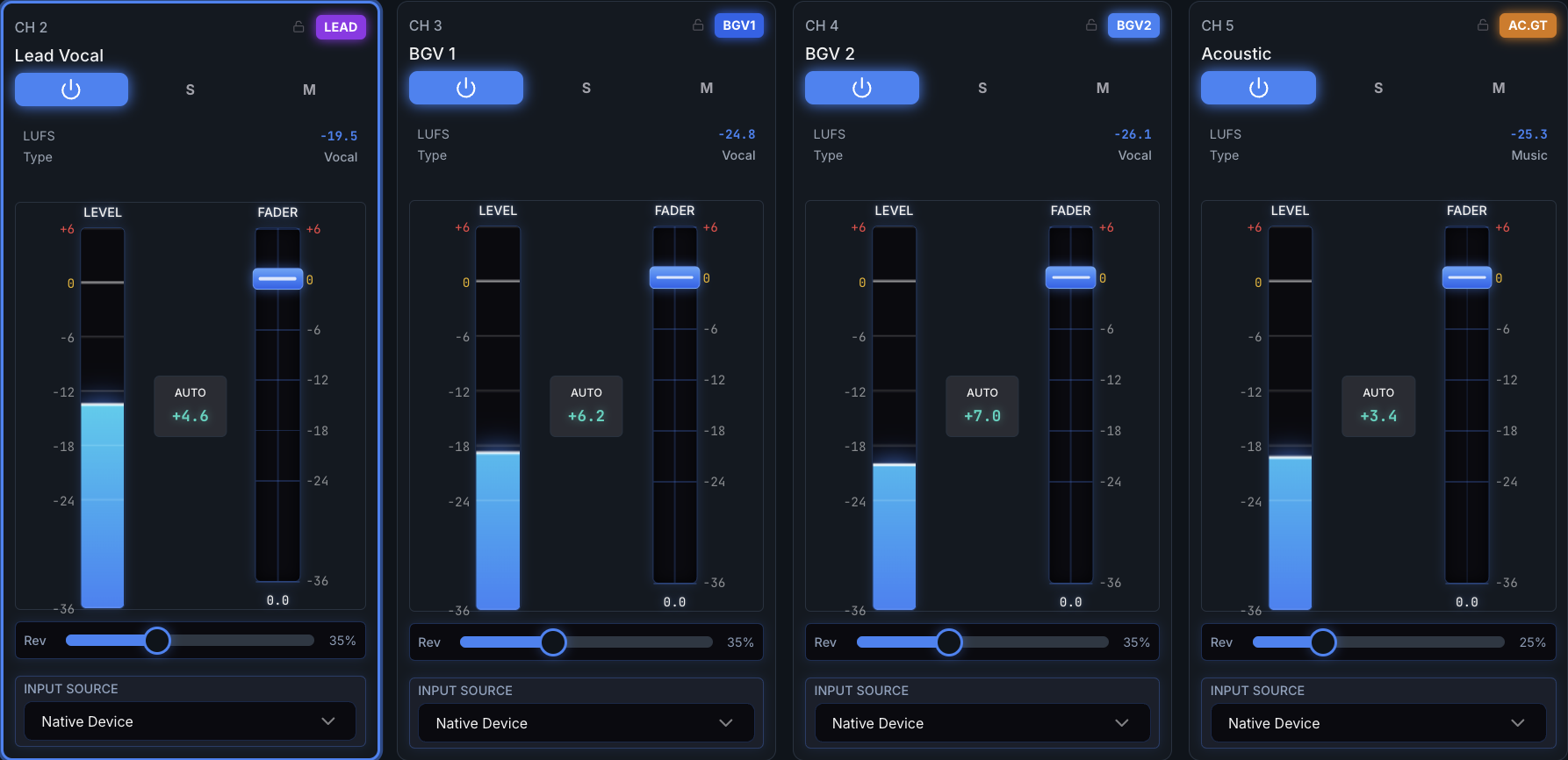
For each channel, set the input it comes from and give it a name you'll recognise — "Lead Vocal", "Host Mic", "Bass". The name is what LAM uses when it needs to tell you something, so name them the way they're labelled on your board.
3. Set the channel type — this is the important one
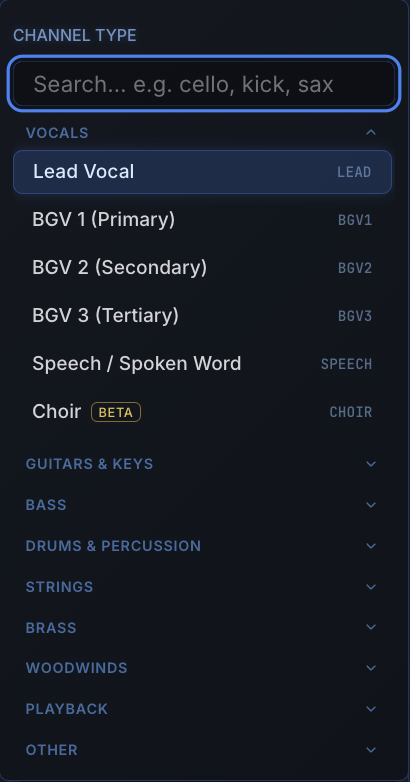
The type tells LAM what each channel is, and that decides how it's treated. A lead vocal is held forward; drums sit back; a speaking microphone is levelled differently from a singing one. Getting types right matters more than any other setting.
4. Save your setup — do this before you walk away
Saving turns everything you just did into a profile. Open Profiles in the top bar, give it a name you'll recognise — "Sunday", "Midweek", "Youth" — and save.
Save a fresh profile whenever your setup changes — a new singer, a different instrument, a microphone moved to another channel.
Audio only restarts on its own if the device you send Program to is switched on and connected when LAM opens. If your interface is unplugged, or powered up after LAM, output stays stopped — open Configure, check the device is listed, and start it there. That is worth knowing before a service rather than during one.
5. Choose your output and start audio
Outputs are set behind Configure in the top bar — the top bar only displays which devices are chosen, so clicking the device names does nothing. Open Configure and set two things:
- Program — what goes to the stream. This is the one that matters.
- Monitor — what you listen on. Often your Mac's own speakers or headphones, and it can be the same device as Program. Pressing S on a channel (Solo) plays that channel on its own here, as it sounds in the mix; the stream keeps the full mix. Solo needs a Monitor that isn't the same output as Program.
Then press start. Nothing reaches the stream until output is running — LAM can look completely normal, with meters moving, and still be sending nothing.

Sending audio to your streaming software
If your streaming software runs on a different machine, you don't need this section — send LAM's Program output to whatever interface feeds that machine, and you're done.
If your streaming software is on the same Mac as LAM, the two can't simply be pointed at each other: macOS has no built-in way for one app's output to become another app's input. LAM can hand its mix over directly, which needs nothing installed — but not every streaming app can accept it that way, so there's a second route that works with all of them. The table below says which one you need.
Option A — straight from LAM (recommended)
LAM can hand its mix directly to your streaming software. Nothing to install, nothing to configure at the system level.
- In OBS, add a Media Source. (These steps use OBS as the example; the table below says what to use in other software.)
- Untick Local File.
- In Input, paste:
http://127.0.0.1:3000/api/audio-stream
That's it. The address is LAM talking to itself on the same machine — nothing leaves your computer and nothing needs to be installed.
This works if your streaming software can take a web address as a source. Not all of them can:
| Software | Use |
|---|---|
| OBS Studio | Option A — Media Source, as above |
| Streamlabs Desktop | Option A — built on OBS, identical steps |
| Wirecast | Option A — but add a Web Stream source instead of a Media Source, same address |
| Ecamm Live | Option B — takes microphones, devices, files and app audio, but not a web address |
| Meld Studio | Option B — on macOS it accepts audio input devices only |
| StreamYard | Option B — it runs in a browser, which only sees microphones |
| vMix | Windows only, so it will be on another computer — send LAM's Program output to whatever interface feeds that machine |
Option B — a virtual audio device
If your software is in the second half of that table, this is the way. A virtual device makes LAM look like an ordinary microphone or sound device, which every streaming app understands. It's an extra piece of software to install and keep working across macOS updates — which is why it isn't our first suggestion — but it works everywhere.
- Install BlackHole 2ch (free) and restart the Mac.
- In LAM, set Program to BlackHole 2ch.
- Set Monitor to your headphones or speakers.
- In your streaming software, add an audio input source — in OBS that is Audio Input Capture — and choose BlackHole 2ch.
Channel types
| Type | Use it for |
|---|---|
| Lead Vocal | The lead voice. Everything else is balanced around this. |
| BGV 1 / 2 / 3 | Backing vocals, in order of prominence. |
| Speech | Speaking microphones — a host or speaker, announcements, a lectern or podium. |
| Choir (beta) | A microphone over a group of singers. Treated as a backing vocal. |
| Acoustic / Electric Guitar, Keys/Piano, Organ (beta), Mandolin / Banjo / Ukulele (beta) | Guitars and keyboards. |
| Bass, Double Bass (beta) | The low end. Upright bass lives here too. |
| Drums (Full Kit), Kick, Snare, Toms, Hi-hat, Overheads, Percussion (beta), Electronic Kit (beta) | Use Drums (Full Kit) for one or two mics on the whole kit or a drum mix from your board. Use the pieces when each drum has its own channel. Percussion is cajon, djembe, congas and the like. |
| Violin, Viola, Cello (beta) | Bowed strings. |
| Trumpet, Trombone, French Horn, Low Brass (beta) | Brass. Low Brass is tuba, euphonium and sousaphone. |
| Saxophone, Flute, Clarinet, Harmonica (beta) | Woodwinds and reeds. |
| Other Instrument | Anything not listed. Sensible, general-purpose settings. |
| Beta means the settings follow the same standards as every other type but haven't yet been confirmed on a real instrument. They work; they may get a small adjustment once they have been heard in the field. | |
| MultiTracks | Pre-recorded stems playing alongside the live band. |
| Background Track | Music from a computer — countdowns, walk-in, video audio. |
| Room / Crowd | Audience microphones. Never boosted — they add atmosphere, not content. |
On the day
- Turn your interface or console on before you open LAM.
- Open LAM. Your profile loads and audio starts on its own.
- Check the profile name in the top bar is the one you expect, and that output is running. If it isn't, open Configure and start it.
- Check levels at soundcheck, not five minutes before you go live.
- Leave it alone. LAM adjusts continuously — it doesn't need supervising.
When LAM asks for your help
LAM fixes most things on its own. The one thing it can't fix is how much signal a channel is sending it in the first place — that's set at your board. When a channel is arriving so quiet that LAM has run out of lift, or so loud that it's about to distort, a strip appears at the top of the window naming the channel and saying what to do.

It comes in two levels, and the difference matters:
- Worth a look — LAM is having to work hard on this channel and is still listening to be sure. Nothing to do yet. This can appear early in a rehearsal and may go away on its own once it has heard a few more songs.
- Too quiet / too loud — LAM has heard enough, across several songs, to be certain. This one asks you to act: turn that channel's gain up or down at the board by roughly the amount it names. It clears by itself once you have.
LAM judges this over songs, not seconds. A quiet verse doesn't count against a channel and a loud chorus doesn't count for one — it's asking about how the channel is set, not how the song is going. So the best time to see these is during rehearsal, when there's time to walk to the board. Once you're live it stays quiet unless something genuinely changes.
Frequently asked questions
I'm getting no signal in my streaming software.
Almost always: LAM's output isn't running. LAM only sends audio while output is started. Start it and the signal appears.
If output is running and your streaming software still hears nothing, check how the two are connected — see Sending audio to your streaming software.
A channel is much quieter than it should be.
Usually the gain for that channel is set too low at the board. LAM can boost a quiet channel, but only so far — past that it runs out of headroom and the channel stays buried. If that's happening, LAM will tell you which channel and roughly how much to turn it up.
LAM says a channel is "too loud coming into LAM."
That channel is arriving louder than it needs to be and is close to distorting. Turn its gain down at the board by roughly the amount LAM suggests — never more than that; LAM only ever asks for enough to bring the channel back to where it should sit. It clears on its own once corrected.
Sometimes LAM will say a channel is clipping but that its level is already right, and that turning it down would make it too quiet. That's a very dynamic source — a singer with a big range, usually. Gain can't fix that; a compressor on that channel at the board can.
LAM says a channel is "too quiet coming into LAM."
LAM has turned that channel up as far as it can and still isn't getting enough. Turn its gain up at the board by about the amount it names. If the strip says nobody may be using that mic, check whether it's simply been left on — muting it is the fix in that case.
The sound crackles or breaks up.
Usually one of these:
- The Mac is overloaded. Video, streaming software and busy web browsers are the usual culprits. Quit what you don't need (Quit from the app's menu, or Command-Q), watch your stream on another device, and if you can, run streaming software on a second computer.
- The USB connection to your board. Connect it straight to the Mac, with one adapter at most — see Choose your input.
- An input is too hot. If LAM shows a level warning for a channel, turn it down a little at the board.
LAM is showing a notice about my license.
Most of the time LAM says nothing about its license — a subscription renews on its own. A notice appears only when something needs you:
- Your subscription hasn't renewed — usually a card that needs updating. LAM keeps working for a few days while you sort it out.
- LAM hasn't been able to check its license because this Mac has been offline. It keeps working for up to 30 days; connecting to the internet once clears it.
- A license with a fixed end date, such as a beta, is getting close to it.
Any notice can be dismissed, and it only comes back if things get more urgent.
How do updates work?
LAM checks for a new version on its own and downloads it quietly in the background. It never installs anything while you're running. When you quit LAM and an update is waiting, it asks one question: install it when LAM closes? Say yes and the new version is there next time you open it; say not now and it'll ask again another day. You can also look any time from Help → Check for Updates.
Do I need to adjust LAM while I am live?
No. That's the point of it. Set it up, start it, leave it.
Does LAM need an internet connection?
Not to mix audio. It does check its license periodically, but it keeps working if the connection drops.
Does LAM send anything to SungTech?
Never your audio. LAM checks its license, and looks for updates to LAM and to our terms, now and then. When you accept our terms in LAM, when you first set it up or after an update, it sends us a record of that. And, only if you say yes, it sends a short crash report when part of it fails, so we can fix it. LAM asks once; you can change your answer any time with Help → Send Crash Reports to SungTech. A report says what failed and which versions of LAM and macOS you have, and includes the most recent part of LAM's log. It's linked to your license, so we know it's yours. Before it's sent, LAM is built to take out the names and IDs of your audio devices, your Mac's name, and your own name and email address. LAM sends reports in the background while your audio keeps running. Help → What a Crash Report Contains has the full details.
Which version am I running?
Help → LAM (build …) shows it. For support, use Help → Copy Diagnostics to Clipboard and paste that into your email.
Where are the logs?
Help → Reveal Logs in Finder. They live in your home folder under
LiveStreamAutoMix/logs.
Something sounded wrong during a broadcast. What should I send?
The diagnostics (above), roughly what time it happened, and what was going on — a song, a speaker, announcements. If you have a recording of the stream, note the timestamp. Knowing when narrows it down enormously.
Getting help
Use Help → Copy Diagnostics to Clipboard and include it in your message. It identifies your exact build, which is the first thing anyone will ask.